
How to Turn Any YouTube Video, Reel, or TikTok Into an Instagram Carousel (in Under 5 Minutes)
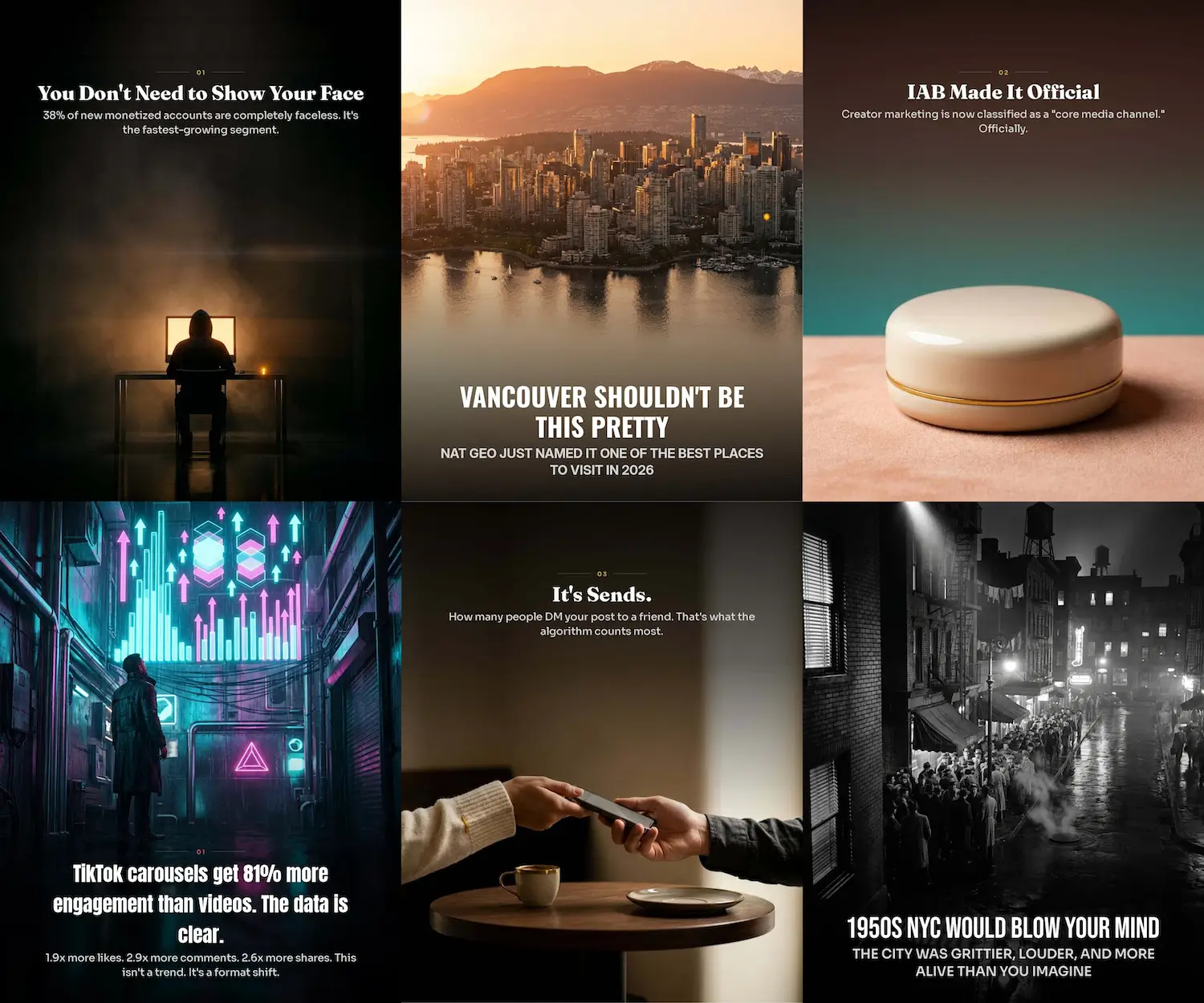
Here's the honest reason most creators don't post enough carousels:
Coming up with a fresh idea every day is exhausting. And even when you have one, designing 8 slides in Canva eats 60 minutes you don't have.
The fix isn't "be more creative" or "buy a template pack." It's a workflow.
This is the one I use to post to my 500k+ Instagram - and it works because each step solves the actual bottleneck for that step.
Three parts:
- Get ideas by chatting with YouTube videos, Reels, or TikToks that already work in your niche.
- Generate the carousel from a prompt - or paste the slide text in directly if you already have it.
- Pick a look (style, font, layout) and let the AI design every slide bespoke.
Let's walk through it.
🎬 Part 1: Chat With Any YouTube, Reel, or TikTok
The hardest part of carousel creation isn't the design - it's the idea.
You can scroll for an hour looking for inspiration and end up with nothing. Or you can hand the AI a video that already nails an idea and ask it to break the idea down for you.
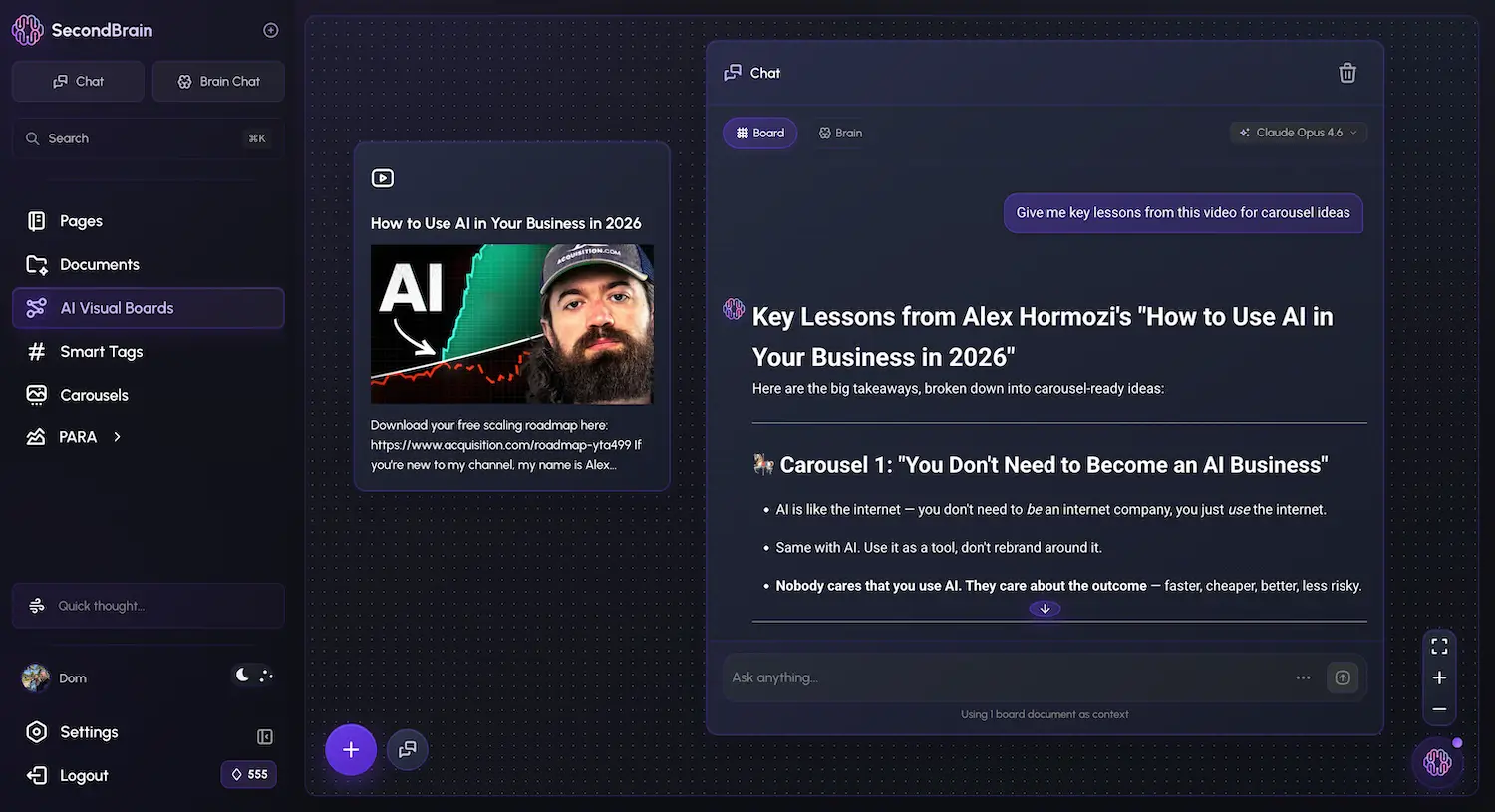
Here's how that looks in Rescroll:
- Open the Visual Board.
- Paste the URL of a YouTube video, Instagram Reel, TikTok, or YouTube Short directly onto the board (or use the icon at the bottom). The system auto-detects it and loads it.
- Drop a chat node next to it and connect them. The video is now the chat's context.
- Ask the chat anything:
- "Summarize this video in 5 bullet points."
- "Give me 3 carousel ideas in the same style."
- "Turn this into an 8-slide carousel outline with a strong hook."
- "What's the actual insight here? Strip the entertainment."
Rescroll reads both the transcript and the visuals, so the answers are sharper than a transcript-only tool. If the creator points at something on screen, the AI sees it.
You're not stealing the video. You're using it as a brief.
The original creator's idea, your angle, your design system. Same thing magazines, agencies, and good creators have always done - the AI just compresses it from 40 minutes to 4.
When the chat gives you an outline you like, save it to a page (or just copy the text). That's your input for Part 2.
✍️ Part 2: Generate the Carousel
Now the easy part.
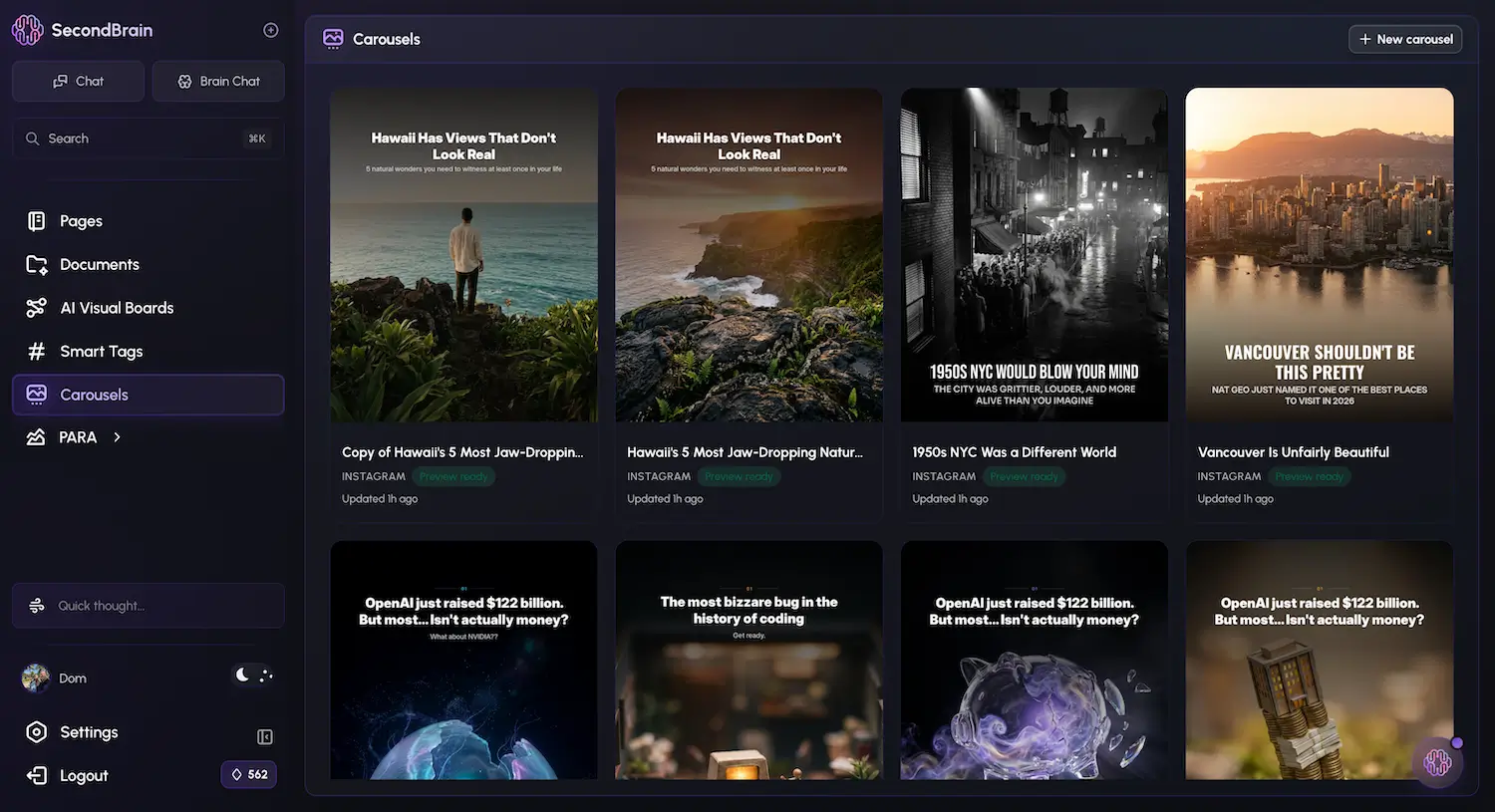
Open the carousel generator and pick your input:
Option A: Prompt it. Type the topic or paste the outline you got from the chat. "7 mistakes founders make when posting on LinkedIn." "How to use the PARA method for note-taking." "Why most AI carousels look cheap." The AI does the research (web search is on by default for fresh data) and writes each slide.
Option B: Manual input. If you already wrote the slides yourself - say, you typed them out during the chat session - paste them in. The AI uses what you wrote and designs around it.
Before you generate, you'll set a few things:
- Format - Instagram & LinkedIn (4:5) or TikTok (9:16).
- Slide count - between 5 and 10. (Past 10, completion rate drops.)
- Audience - optional, but useful. "B2B SaaS founders." "First-time creators." "Real estate agents."
- Tone - optional, free-form text. "Direct and a little snarky." "Warm, like a teacher." Or paste a sample of your own writing for it to match.
Hit generate. ~90 seconds later, you've got a carousel.
🎨 Part 3: Pick a Look
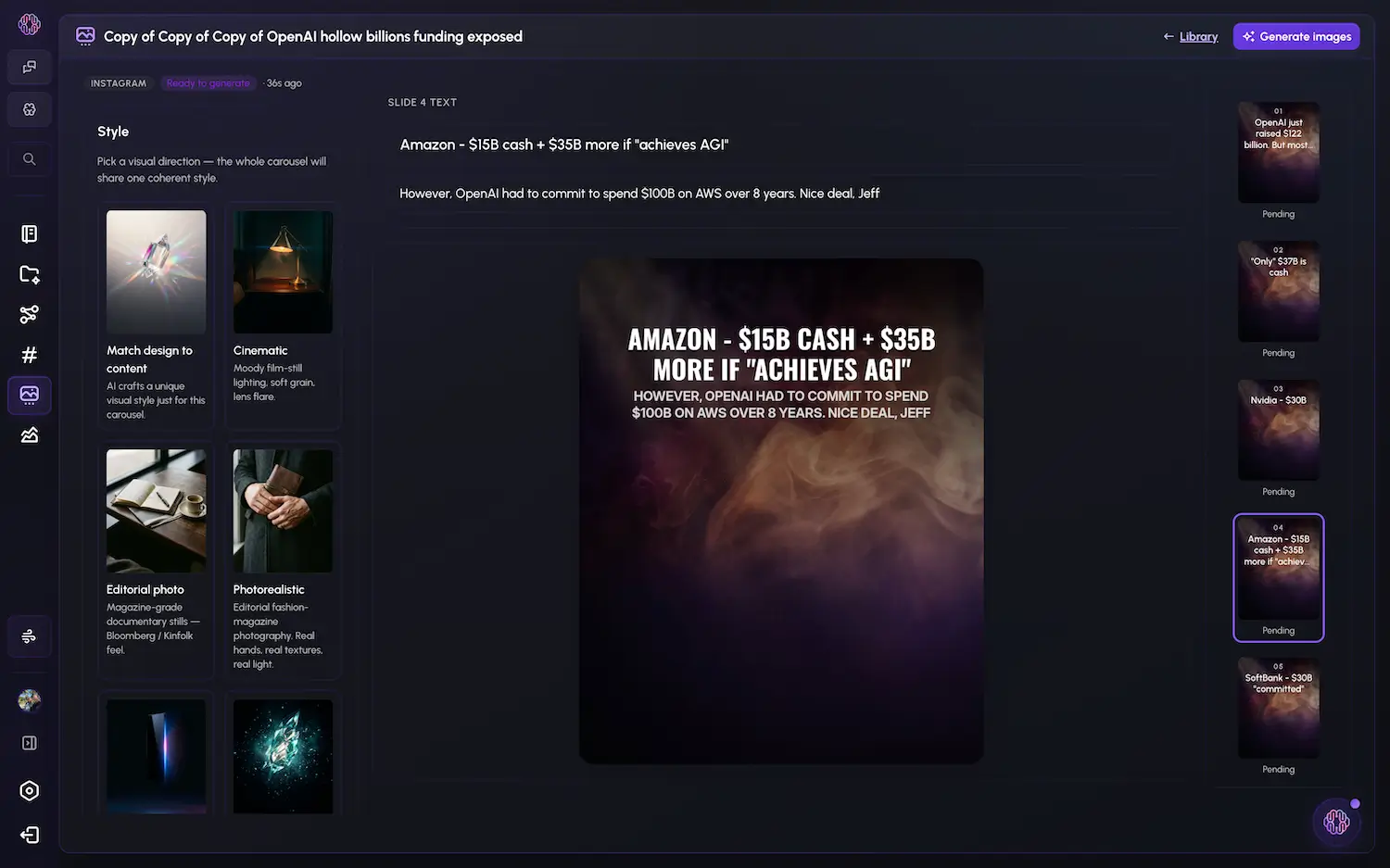
This is the part most AI carousel tools get wrong - and the part that matters most.
You can adjust:
Visual style. 19 presets, ranging from clean to weird:
Match design to content (auto-pick), Cinematic, Editorial photo, Photorealistic, Tech, Void, Gradient, Cyberpunk, Golden Hour, Hand-drawn, Film Noir, Fine Art, Hyper-Surreal, Miniature Diorama, Holographic, 3D render, Paper, Bioluminescent, Ink Bloom.
These aren't filters. They're directions for how every slide gets composed - so a Cinematic carousel and an Editorial photo carousel about the same topic look like completely different posts.
Layout. 4 options - Bottom gradient, Top gradient, Center poster, Inset card. This controls where text sits and how the image breathes around it.
Font pair. 6 pairings - Editorial, Modern, Classic, Impact, Headline, Condensed. Each one is a hand-tuned heading + body match. You don't have to pick fonts manually unless you want to.
Accent color. Hex picker. Use your brand color, or whatever makes you happy.
The reason this matters: every slide is designed bespoke against these settings, not stamped from one template. Slide 1 is built as a hook. Mid-slides are built differently depending on whether it's a list, a comparison, a story, or a stat. The last slide is built as a CTA. Every slide has its own rhythm - which is why the output doesn't look like the 40 other AI carousels people scrolled past yesterday.
🔧 The Tweaks (When You Want to Polish)
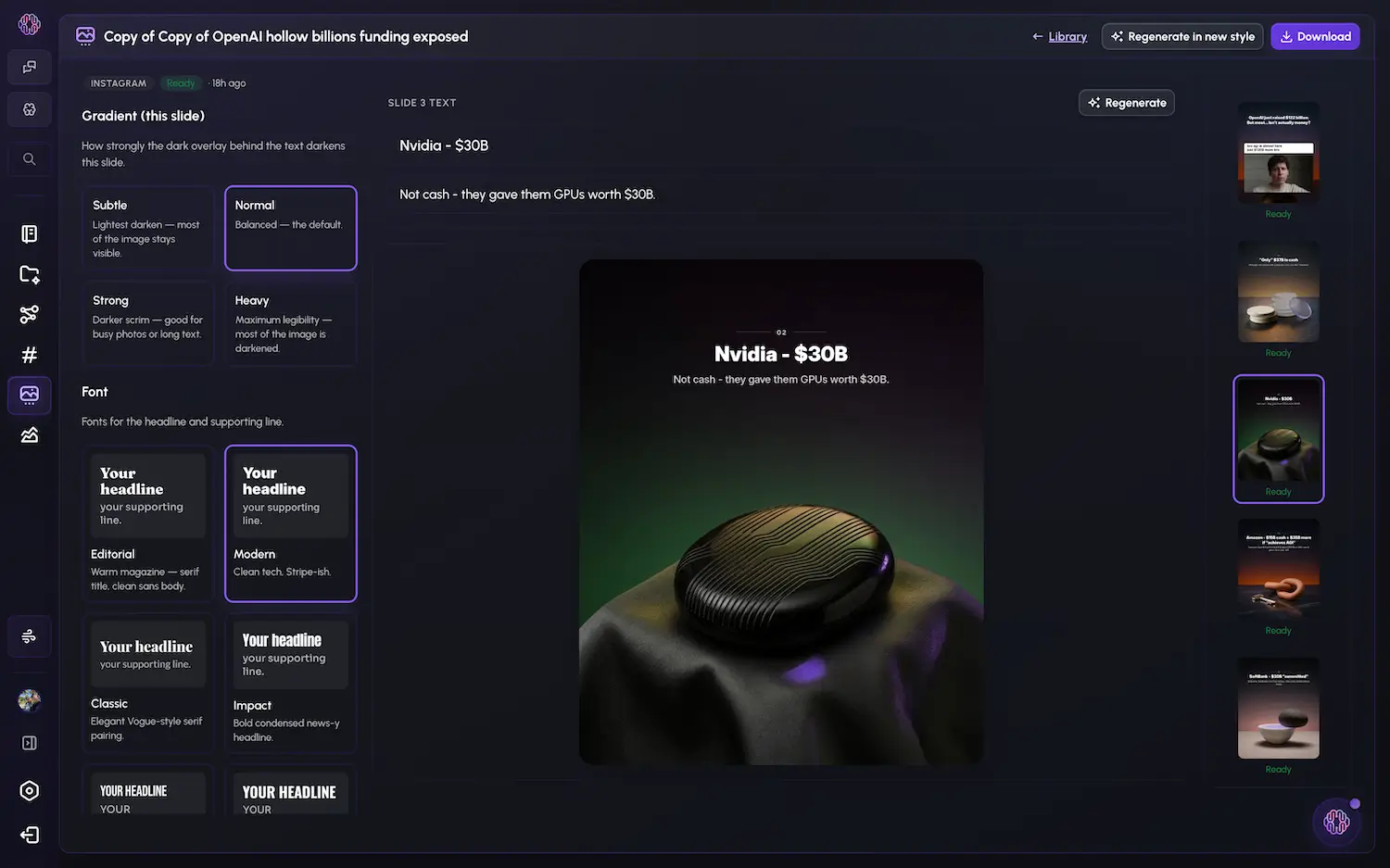
Sometimes the first generation is post-ready. Sometimes you want to nudge one slide. Both are fine.
What you can adjust per slide:
- Edit title and subtitle directly on the slide. Live preview updates as you type.
- Regenerate just one slide's image with a steering prompt. "Make this more minimal." "Show a screen mockup instead."
- Gradient intensity - Subtle, Normal, Strong, Heavy. Controls how dark the overlay sits behind the text. Use Strong if your image is busy and the text is getting lost.
- Slide numbering - toggle on/off, set the range (e.g., number slides 2-9 but leave the cover and CTA un-numbered).
- Add, delete, reorder, or swap to an alternate version of any slide.
This is the layer that turns a "good first draft" into "this is exactly what I wanted to post."
📦 The Caption Pack (Don't Skip This)
A finished carousel that ships with no caption is a carousel that sits in your drafts.
Every generation gives you:
- A caption - written for the post (hook → body → CTA).
- Hashtags - matched to the topic.
- A first comment - the trick that quietly extends reach.
Each one has its own regenerate button with a steering prompt. "Make the caption shorter." "Less corporate." "Pose the CTA as a question."
Then download the ZIP. Slides as PNGs, ready to drag into Instagram.
🪄 The Whole Workflow, End to End
For a creator who already has the workflow set up:
- Find a video in your niche that's working (~2 min of scrolling, honestly).
- Drop it on the Visual Board and chat with it - get the angle, the structure, the hook (~3 min).
- Open the carousel generator, paste the outline, pick style/font/layout (~30 sec).
- Generate (~90 sec).
- Tweak one or two slides if needed (~1 min).
- Download the ZIP, post.
Total: under 10 minutes. Compared to the old workflow (find idea → write outline → open Canva → drag template → fight alignment → write caption → Google hashtags), it's not even close.
🧭 Which Path When
Quick decision tree:
- You found a great video and want to riff on the idea → Visual Board chat → carousel generator.
- You already know what you want to say → straight to the carousel generator (prompt it).
- You wrote the slides word-for-word yourself → carousel generator, manual input.
- You're trying to keep your style consistent across posts → set the visual style, font pair, and accent color once. Reuse them.
I use all three depending on the day. The chat path is where the best ideas come from. The prompt path is the daily driver. Manual input is for when I'm being precious about the words.
TL;DR
- Step 1: Chat with YouTube videos, Reels, or TikToks on the Visual Board to extract ideas. Rescroll reads transcript + visuals.
- Step 2: Take the outline (or your own prompt, or your own slide text) into the carousel generator.
- Step 3: Pick format, slide count, visual style (19 presets), layout (4), font pair (6), accent color, audience, and tone. Generate.
- Step 4: Tweak per-slide if needed - title, subtitle, image regeneration with steering, gradient intensity, numbering.
- Step 5: Grab the caption, hashtags, first comment, and ZIP. Post.
The reason this works isn't that AI replaced the creator. It's that AI is finally good at the boring parts - extracting structure from videos, designing slides that don't look templated, writing the caption while you sleep.
The fun parts (taste, voice, what you actually want to say) are still yours.